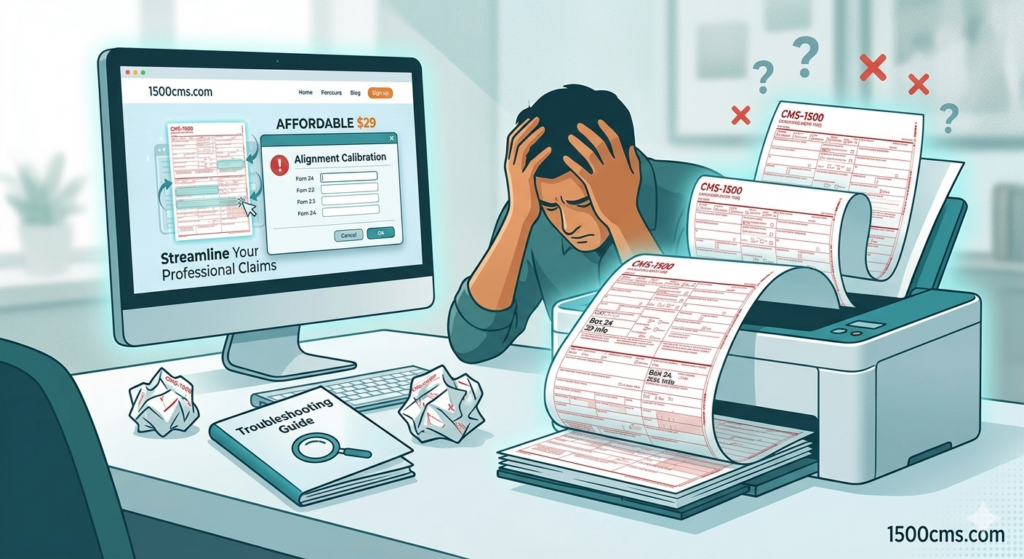
One of the biggest frustrations in medical billing is having a claim rejected simply because the data didn’t line up perfectly with the red “OCR” boxes. Even a shift of a few millimeters can cause a scanning error at the insurance clearinghouse.
If you’ve been using 1500cms.com successfully and suddenly find your alignment is off, or if you are setting up a new printer, follow this 4-step checklist to ensure perfect claims every time.
1. Disable “Scale to Fit” (The #1 Culprit)
Most modern printers and PDF viewers (like Adobe Acrobat or Chrome) try to be helpful by shrinking a document to fit within a “printable area.” For a CMS-1500 form, this is disastrous.
-
The Fix: When you hit Print, look for the Page Sizing & Handling section.
-
The Setting: Always select “Actual Size” or set the Custom Scale to 100%.
-
Avoid: Never select “Fit,” “Shrink oversized pages,” or “Scale to fit.”
2. Check the Paper Guides
Since the CMS-1500 form is a precision document, the paper must enter the printer perfectly straight. If the plastic guides in your printer tray have even a little bit of “wiggle room,” the form can skew.
-
The Fix: Slide the paper guides until they are snug against the edges of the red forms.
-
Pro Tip: If you are using an older printer, the rollers may pull slightly harder on one side. If your text is consistently tilted, it may be time to clean your printer rollers with a lint-free cloth.
3. Calibrate Your Software
Sometimes, even with the right settings, every printer has a unique “margin of error.” 1500cms.com includes a built-in calibration feature to account for this.
- Test First: Instead of wasting your expensive red forms, print a test page on a blank sheet of white paper, then hold it up to the light behind a red CMS-1500 form to check the alignment.
-
How to Nudge: contact Info@1500cms.com, and we will adjust the template to fit your print settings.
4. Update Your PDF Driver
If your alignment was perfect yesterday but is wrong today, your computer may have updated its default PDF viewer.
-
The Fix: If you are printing from a web browser (like Chrome or Edge) and having trouble, try downloading the file and opening it in the official Adobe Acrobat Reader. It offers the most stable “Actual Size” printing for professional forms.
Still Having Trouble?
If you’ve followed these steps and your forms still aren’t lining up, our support team is here to help. Contact us at info@1500cms.com with your printer model and a description of the shift, and we will help you find the right coordinates.