Anyone who works in medical billing knows the frustration of claim denials. Incorrect or incomplete CMS-1500 forms are a major cause of these denials, leading to delays in reimbursement and wasted time spent on rework.
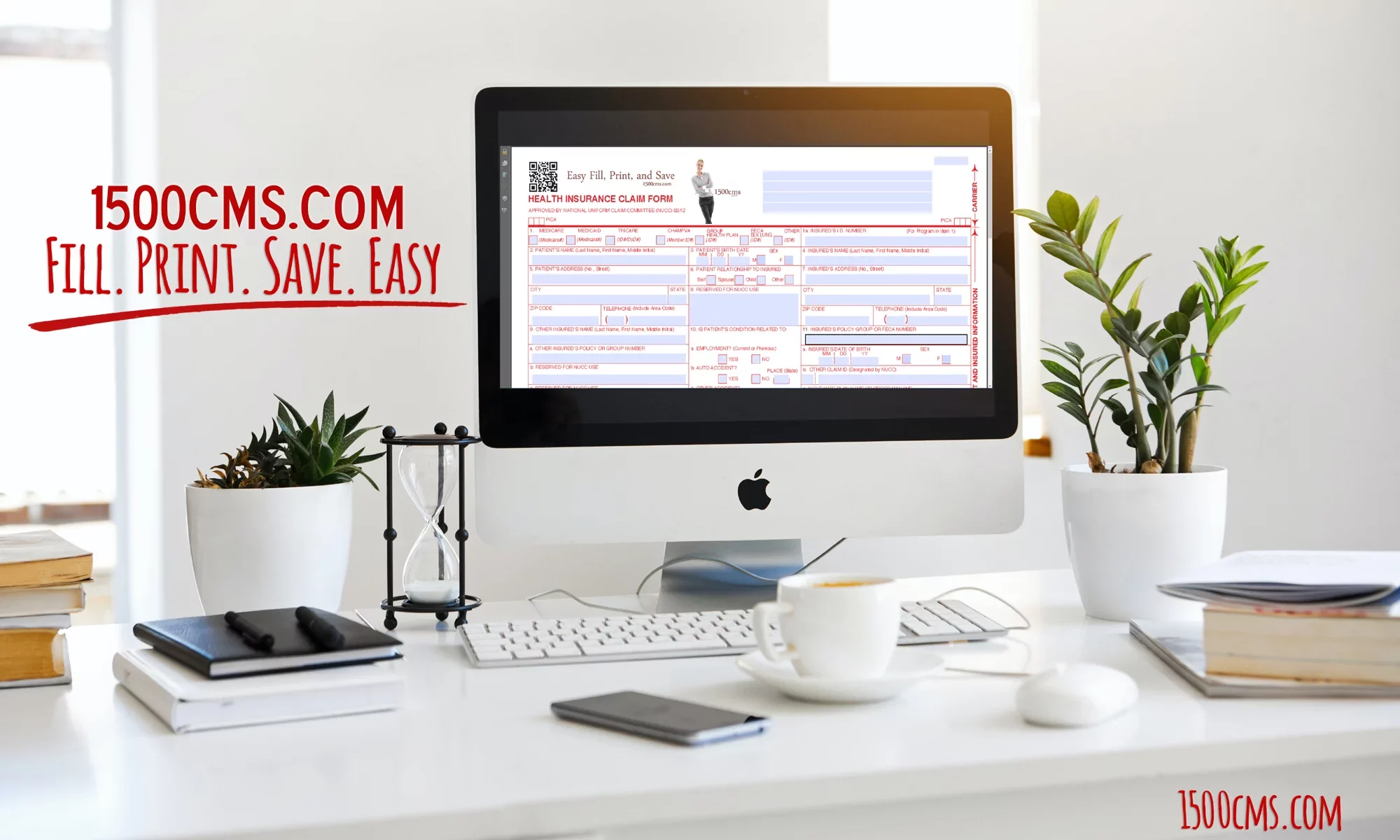
Here at 1500cms.com, we understand the challenges of accurate and efficient CMS-1500 form completion. That’s why we developed our user-friendly software to help medical billers and coders streamline their workflow and get claims paid faster.
How 1500cms.com Can Help You Avoid Denials:
Auto-population of Data: Save time and reduce errors by automatically populating frequently used information from patient records and previous claims.
Standardized Templates: Utilize pre-built templates for common procedures and diagnoses to ensure consistency and accuracy.
Efficiency and Productivity Gains
Faster Form Completion: The intuitive interface allows you to complete CMS-1500 forms quickly and easily.
Improved Workflow: Our software streamlines the entire billing process, from data entry to claim submission.
Focus on What Matters: By reducing errors and rework, 1500cms.com frees up valuable time for you to focus on other important tasks.
Don’t Let Denials Hold You Back
Denial headaches are a thing of the past with 1500cms.com. Our software empowers medical professionals to submit accurate claims with confidence, leading to faster reimbursements and improved cash flow.
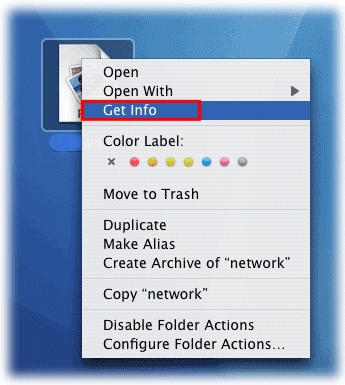
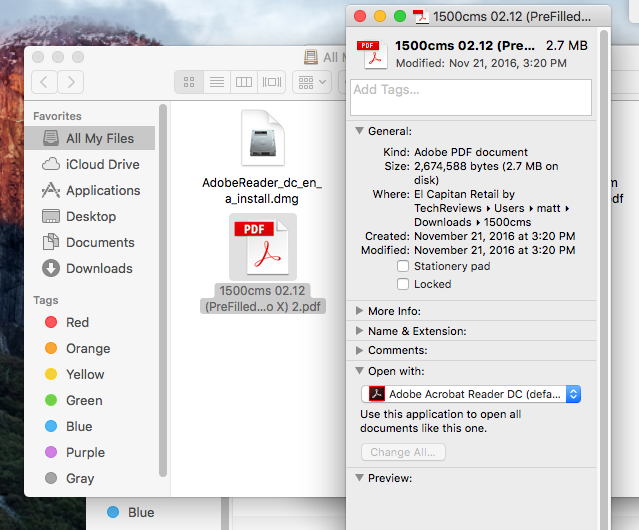
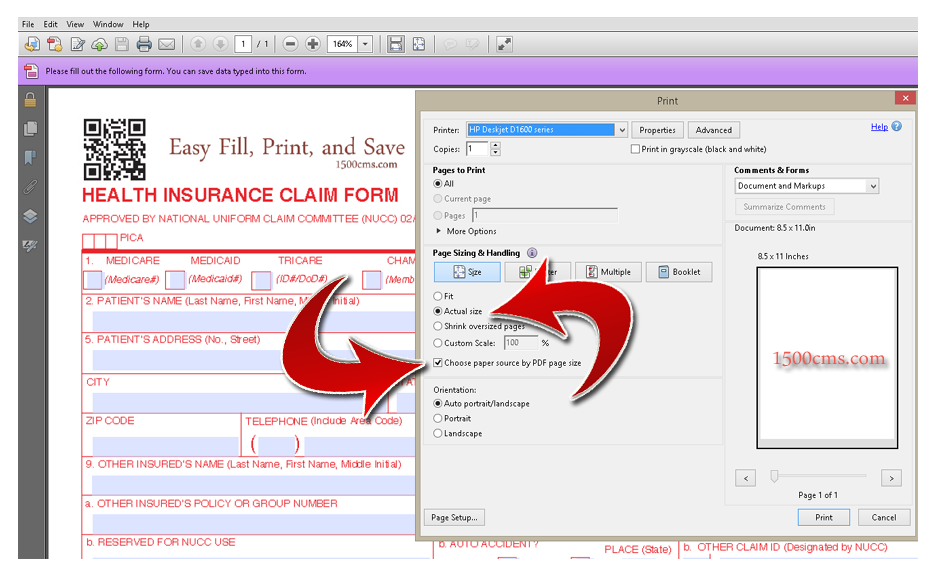
Select any PDF file and choose File > Get Info. (Control-click: Press and hold the Control key while you click an item)
Choose the application with which you want to open PDF files (Adobe Reader) from the Open With menu. The programs are normally found in the Applications folder.
Click Change All, and then click Continue.
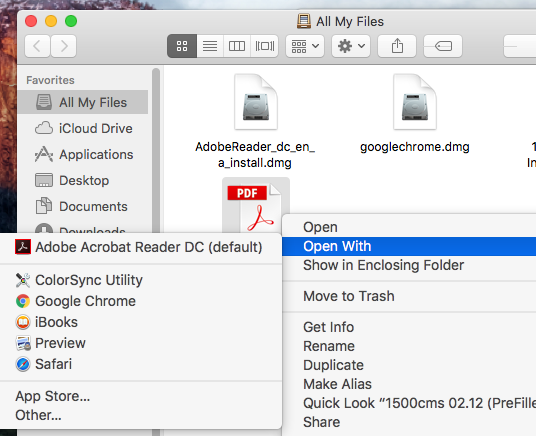
If you want to open 1500cms.com templates without changing the default PDF viewer
Select “Open With” and select Adobe Reader from the menu (see below)
People think focus means saying yes to the thing you’ve got to focus on. But that’s not what it means at all. It means saying no to the hundred other good ideas that there are. You have to pick carefully. I’m actually as proud of the things we haven’t done as the things I have done. Innovation is saying no to 1,000 things.
Steve Jobs – Apple Worldwide Developers’ Conference, 1997
These tests are a big deal, but this tag is no longer supported in HTML5.
Cite Tag
“Code is poetry.” —Automattic
Code Tag
You will learn later on in these tests that word-wrap: break-word; will be your best friend.
Delete Tag
This tag will let you strikeout text, but this tag is no longer supported in HTML5 (use the <strike> instead).
Emphasize Tag
The emphasize tag should italicize text.
Insert Tag
This tag should denote inserted text.
Keyboard Tag
This scarcely known tag emulates keyboard text, which is usually styled like the <code> tag.
Preformatted Tag
This tag styles large blocks of code.
.post-title {
	margin: 0 0 5px;
	font-weight: bold;
	font-size: 38px;
	line-height: 1.2;
	and here's a line of some really, really, really, really long text, just to see how the PRE tag handles it and to find out how it overflows;
}
This is a paragraph. It should not have any alignment of any kind. It should just flow like you would normally expect. Nothing fancy. Just straight up text, free flowing, with love. Completely neutral and not picking a side or sitting on the fence. It just is. It just freaking is. It likes where it is. It does not feel compelled to pick a side. Leave him be. It will just be better that way. Trust me.
Left Align
This is a paragraph. It is left aligned. Because of this, it is a bit more liberal in it’s views. It’s favorite color is green. Left align tends to be more eco-friendly, but it provides no concrete evidence that it really is. Even though it likes share the wealth evenly, it leaves the equal distribution up to justified alignment.
Center Align
This is a paragraph. It is center aligned. Center is, but nature, a fence sitter. A flip flopper. It has a difficult time making up its mind. It wants to pick a side. Really, it does. It has the best intentions, but it tends to complicate matters more than help. The best you can do is try to win it over and hope for the best. I hear center align does take bribes.
Right Align
This is a paragraph. It is right aligned. It is a bit more conservative in it’s views. It’s prefers to not be told what to do or how to do it. Right align totally owns a slew of guns and loves to head to the range for some practice. Which is cool and all. I mean, it’s a pretty good shot from at least four or five football fields away. Dead on. So boss.
Justify Align
This is a paragraph. It is justify aligned. It gets really mad when people associate it with Justin Timberlake. Typically, justified is pretty straight laced. It likes everything to be in it’s place and not all cattywampus like the rest of the aligns. I am not saying that makes it better than the rest of the aligns, but it does tend to put off more of an elitist attitude.
Welcome to image alignment! The best way to demonstrate the ebb and flow of the various image positioning options is to nestle them snuggly among an ocean of words. Grab a paddle and let’s get started.
On the topic of alignment, it should be noted that users can choose from the options of None, Left, Right, and Center. In addition, they also get the options of Thumbnail, Medium, Large & Fullsize.
The image above happens to be centered.
The rest of this paragraph is filler for the sake of seeing the text wrap around the 150×150 image, which is left aligned.
As you can see the should be some space above, below, and to the right of the image. The text should not be creeping on the image. Creeping is just not right. Images need breathing room too. Let them speak like you words. Let them do their jobs without any hassle from the text. In about one more sentence here, we’ll see that the text moves from the right of the image down below the image in seamless transition. Again, letting the do it’s thang. Mission accomplished!
And now for a massively large image. It also has no alignment.
The image above, though 1200px wide, should not overflow the content area. It should remain contained with no visible disruption to the flow of content.
And now we’re going to shift things to the right align. Again, there should be plenty of room above, below, and to the left of the image. Just look at him there… Hey guy! Way to rock that right side. I don’t care what the left aligned image says, you look great. Don’t let anyone else tell you differently.
In just a bit here, you should see the text start to wrap below the right aligned image and settle in nicely. There should still be plenty of room and everything should be sitting pretty. Yeah… Just like that. It never felt so good to be right.
And just when you thought we were done, we’re going to do them all over again with captions!
The image above happens to be centered. The caption also has a link in it, just to see if it does anything funky.
Itty-bitty caption.
The rest of this paragraph is filler for the sake of seeing the text wrap around the 150×150 image, which is left aligned.
As you can see the should be some space above, below, and to the right of the image. The text should not be creeping on the image. Creeping is just not right. Images need breathing room too. Let them speak like you words. Let them do their jobs without any hassle from the text. In about one more sentence here, we’ll see that the text moves from the right of the image down below the image in seamless transition. Again, letting the do it’s thang. Mission accomplished!
And now for a massively large image. It also has no alignment.
Massive image comment for your eyeballs.
The image above, though 1200px wide, should not overflow the content area. It should remain contained with no visible disruption to the flow of content.
Feels good to be right all the time.
And now we’re going to shift things to the right align. Again, there should be plenty of room above, below, and to the left of the image. Just look at him there… Hey guy! Way to rock that right side. I don’t care what the left aligned image says, you look great. Don’t let anyone else tell you differently.
In just a bit here, you should see the text start to wrap below the right aligned image and settle in nicely. There should still be plenty of room and everything should be sitting pretty. Yeah… Just like that. It never felt so good to be right.
And that’s a wrap, yo! You survived the tumultuous waters of alignment. Image alignment achievement unlocked!




 The rest of this paragraph is filler for the sake of seeing the text wrap around the 150×150 image, which is left aligned.
